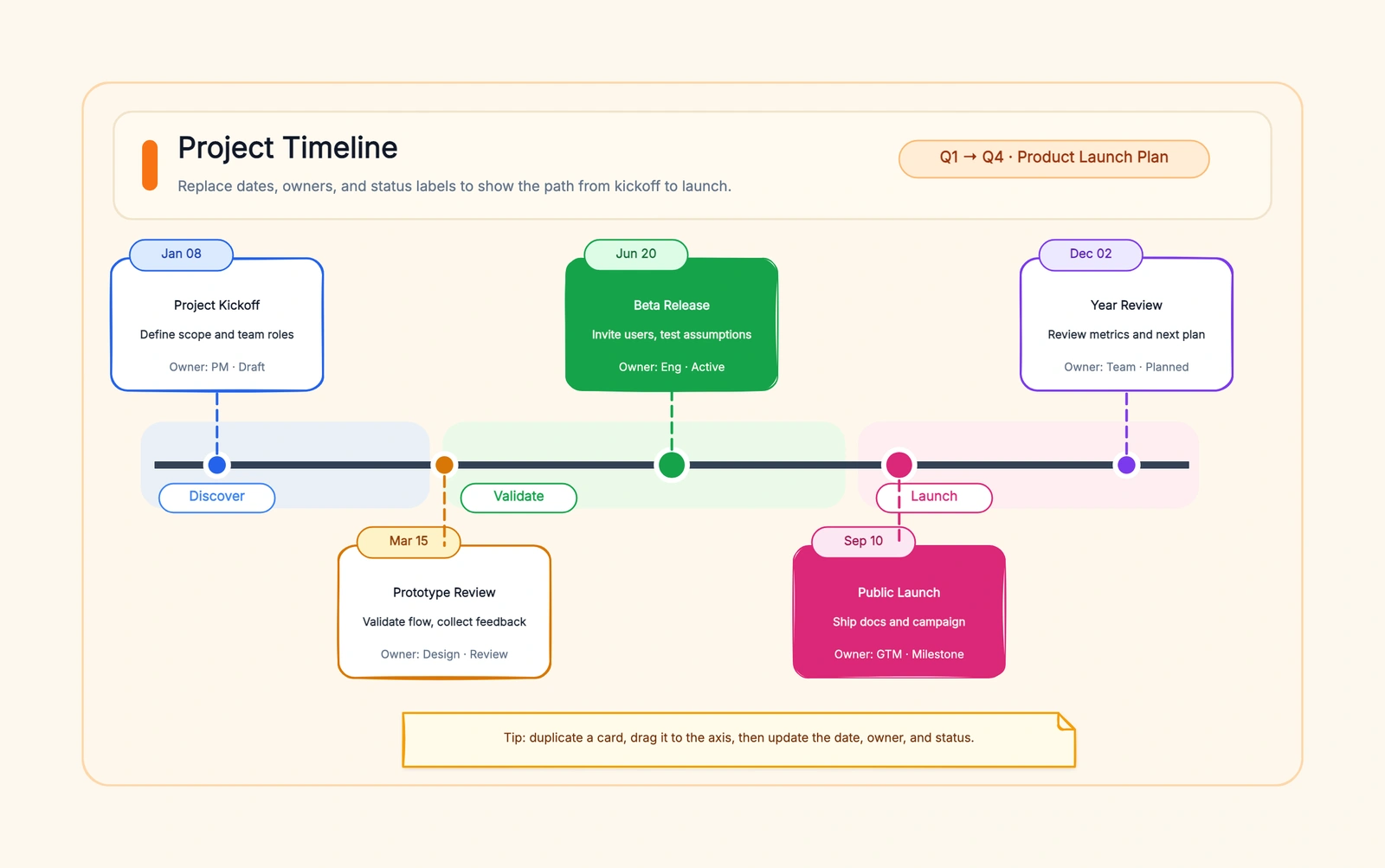
A free timeline maker lets you visualize a sequence of events — project milestones, product roadmaps, history lessons, investor pitches — in minutes, without buying software. This guide compares the 7 best free timeline tools side-by-side, including no-sign-up options, watermark rules, export formats, and editable project timeline templates for Excel, PowerPoint, Google Sheets, and Word.
Quick answer: If you want to create a timeline online without signing up, use the free timeline maker and export PNG with no watermark. If you want a polished infographic library, use Canva. For a project timeline in a spreadsheet you already use, grab one of the Excel, PowerPoint, or Google Sheets templates below.
What to Look For in a Timeline Tool
Layout flexibility. Timelines can be horizontal, vertical, or winding. Some tools only offer one direction. If your timeline has 30+ events, a vertical scroll layout works better than squishing everything into a horizontal bar.
Visual quality. A timeline is often meant to be shared — in a deck, a report, or a blog post. The output needs to look polished enough to present without further editing.
Data import. Can you feed the tool a spreadsheet of dates and events and get a timeline automatically? Or do you have to position every node by hand? This is the difference between 5 minutes and 45 minutes for a 20-event timeline.
Interactivity. Some tools produce static images. Others produce interactive timelines you can scroll, zoom, or click into. The right choice depends on whether you're exporting a PNG for a slide deck or embedding a live timeline on a webpage.
Export formats. PNG, SVG, PDF, or embeddable HTML? If your timeline lives in a Google Doc, you need an image. If it lives on a website, you might want an embed code.
How to Create a Timeline Online for Free
If you already know your events, the tool matters less than the preparation. This five-step workflow works in a timeline creator, a slide editor, or a whiteboard:
- Write one sentence that defines the story. “Show the six decisions between kickoff and public launch” is better than “make a project timeline.” It tells you which events belong and which details are noise.
- Collect dates and milestones in a plain list. Use one level of precision—days, months, or quarters—throughout. Mixing “March 12” with “Q3” makes spacing and comparison harder.
- Choose the layout by reading context. Use horizontal for a slide, vertical for a long web page, and multiple tracks only when parallel work is the point.
- Label outcomes, not activity. “Beta approved” communicates more than “testing.” Keep each label under six words and move explanations into notes or captions.
- Export and test at its destination size. A timeline that looks clear at full-screen zoom may become unreadable inside a report. Export PNG, place it in the real slide or document, and check whether the dates and milestone names remain legible.
For the shortest route, open the editable timeline maker template, then choose “Use this template” to enter the editor. If your source data already lives in a spreadsheet, use the Google Sheets project timeline walkthrough instead of copying every date by hand.
Canva
Free tier: Free editor with a large library of free templates and assets Collaboration: Real-time link collaboration Export: PNG, JPG, and PDF; premium assets still require payment
Canva offers a large collection of timeline templates and free design assets. Pick a template, swap in your dates and text, adjust colours, and export. For someone who isn't a designer, Canva makes it very easy to produce a timeline that looks professional.
The downside is that customization hits a ceiling quickly. Templates are pre-structured — if you need more events than the template was designed for, things get awkward. There's no data import: every event is positioned manually. For timelines with more than a dozen entries, this gets tedious.
Best for: Quick, visually polished timelines with fewer than 15 events, especially when you want to present something attractive without design skills.
Visme
Free tier: Unlimited projects with limited templates, assets, and storage Collaboration: Public publishing and link sharing Export: File downloads require a paid plan
Visme is built for infographics, and timelines are one of its strongest template categories. The template quality is polished, and the Basic plan lets you keep creating projects. The restriction appears at delivery: premium assets and privacy controls are limited, published work carries Visme branding, and downloading files requires a paid plan.
Best for: Evaluating a polished infographic editor or publishing a timeline online before deciding whether paid downloads are worth it.
Preceden
Free tier: Unlimited timelines, up to 10 events per timeline Collaboration: Shareable viewing link; editing collaboration is paid Export: PDF, PNG, PowerPoint, CSV, and Excel with Preceden branding
Preceden is a dedicated timeline tool — that's all it does. Events are automatically placed on a proportional time axis with proper date scaling. You can have multiple layers for parallel tracks, and the tool handles overlapping events gracefully. The free plan allows unlimited timelines and common exports, but each timeline stops at ten events and keeps Preceden branding; spreadsheet import and editing collaborators require a paid plan.
Best for: History, research, or project timelines where proportional date scaling and multi-layer tracks matter more than visual flair.
Google Slides / PowerPoint Online
Free tier: Unlimited Collaboration: Real-time Export: PDF, PNG, PPTX
Sometimes the right tool is the one you already have open. Google Slides and PowerPoint Online are fully free, support real-time collaboration, and everyone already knows how to use them. The experience is manual — you're placing shapes and text boxes — but for a 5-to-10 event timeline in a presentation, being already in your slide deck is a real advantage.
Best for: Timelines that are part of a slide presentation and don't need to exist outside of it.
Miro
Free tier: 3 editable boards Collaboration: Real-time Export: PNG, JPG, PDF
Miro's infinite canvas is flexible enough to build any kind of timeline — horizontal, vertical, branching. Real-time collaboration means your team can build the timeline together. The tradeoff: no timeline-specific automation. Every element is placed manually. With only 3 editable boards on the free tier, you'll need to reuse boards.
Best for: Collaborative timeline brainstorming sessions where the team needs to build and discuss the timeline together.
CodePic
Free tier: Unlimited Collaboration: Read-only link sharing Style: Hand-drawn (roughjs) AI generation: Supported via MCP
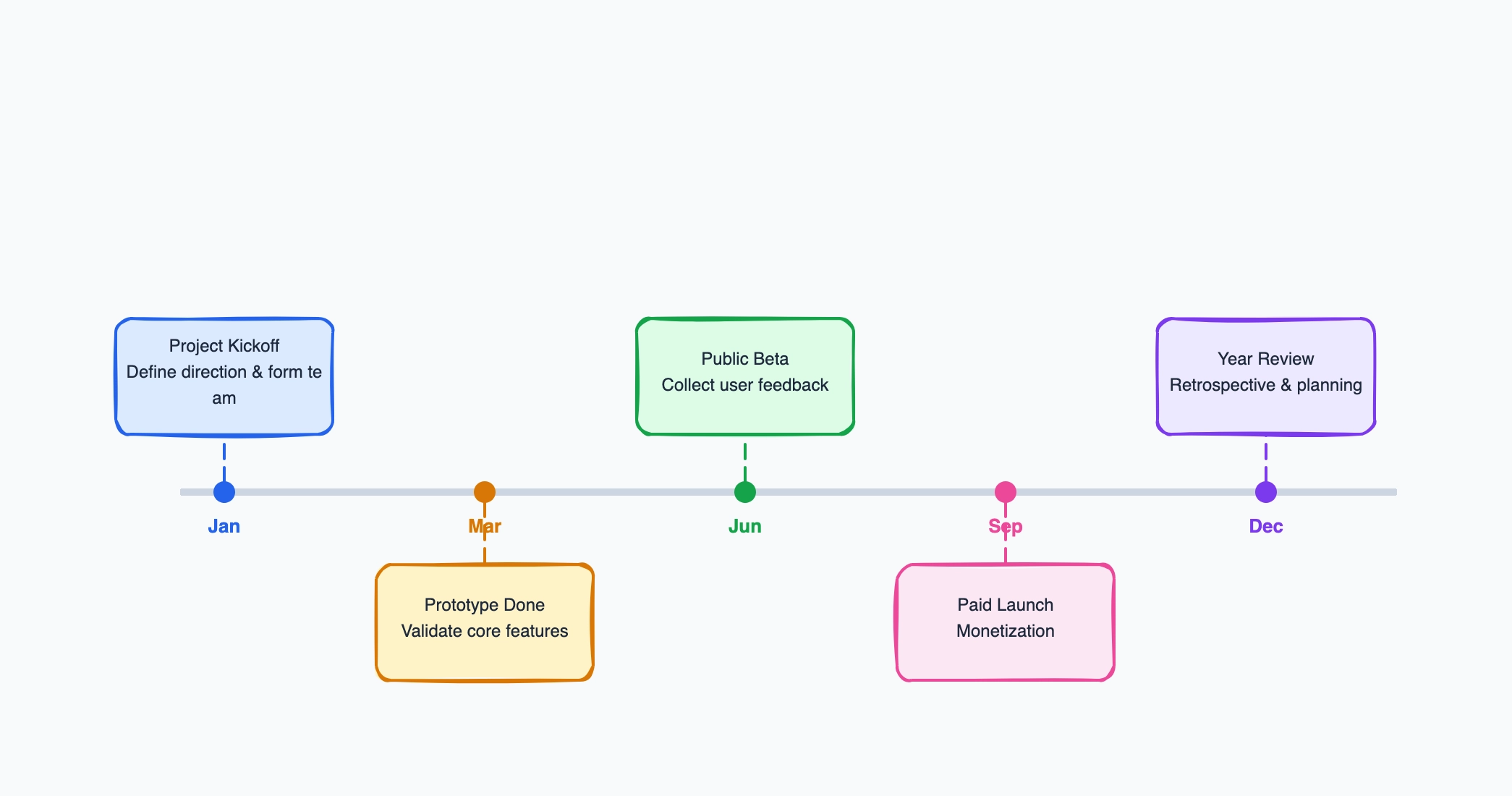
CodePic is a diagramming tool with a hand-drawn visual style. The timeline template produces a clean, sketch-style timeline — the kind that works well in pitch decks, retrospective documents, and blog posts. The AI integration through MCP lets you describe your timeline events in plain text and get a visual generated automatically. No date-axis scaling, but for communicating a sequence of events visually, the hand-drawn style works in your favour.
Best for: Proposals, retrospectives, and presentations where you need a timeline visual that's quick to create and has a distinctive, approachable style.
TimeGraphics
Free tier: Public timelines are free; private and link-only timelines are paid Collaboration: Public viewing and website embedding Export: Downloads include a watermark unless you upgrade
TimeGraphics produces interactive, embeddable timelines — zoomable, scrollable, with support for images and videos attached to events. Free timelines must remain public and may be indexed by search engines. Upgrade when you need private or link-only access, duplication, or watermark-free downloads.
Best for: Interactive, embeddable timelines for websites or blogs where readers need to explore events by scrolling and zooming.
7 Free Online Timeline Makers Compared
| Tool | Free Plan | Collaboration | Layout | Data Import | Best For |
|---|---|---|---|---|---|
| Canva | Free editor; premium assets excluded | Real-time | Template-based | No | Quick, polished visuals |
| Visme | Unlimited projects; paid downloads | Public sharing | Template-based | Limited | Online publishing and evaluation |
| Preceden | Unlimited timelines, 10 events each | View link | Proportional axis | Paid import | Date-accurate timelines |
| Google Slides / PPTX | Unlimited | Real-time | Manual shapes | No | In-presentation timelines |
| Miro | 3 boards | Real-time | Freeform canvas | No | Collaborative brainstorming |
| CodePic | Unlimited | Read-only | Hand-drawn template | AI generation | Proposals and presentations |
| TimeGraphics | Free public timelines | Public/embed | Interactive axis | Manual | Embeddable web timelines |
Project Timeline Templates You Can Copy
Sometimes you don't need a timeline maker — you need a project timeline template you can drop your dates into and go. The four formats people ask for most:
Project Timeline Template Excel
Excel is where a lot of project timelines already live — your milestone list is probably in a spreadsheet already. A good Excel timeline template uses a horizontal bar chart with dates on the X-axis and milestone labels on the Y-axis. You enter your dates into a table, and the chart updates automatically.
We have a full guide on creating a project timeline in Excel with a downloadable template, formatting tips for making it look presentable (not just a default bar chart), and a comparison of when to use Excel vs a dedicated timeline tool. If your data is already in a spreadsheet, start there.
Project Timeline Template PowerPoint
PowerPoint timelines are the most common format for stakeholder presentations. The built-in SmartArt timeline is functional but limited — it handles 5-7 milestones and looks like every other SmartArt timeline anyone has ever seen.
Our PowerPoint timeline template guide shows you how to go beyond SmartArt: custom timeline layouts that stand out in a deck, how to structure a timeline slide for executive audiences (hint: less text, more visual hierarchy), and a template you can copy directly into your presentation.
Project Timeline Template Google Sheets
Google Sheets timelines have one big advantage over Excel: real-time collaboration without version control headaches. Multiple team members can update milestone dates and the timeline chart refreshes for everyone.
Read our Google Sheets timeline template guide for a collaborative timeline template, step-by-step chart setup instructions, and tips for sharing and embedding the finished timeline in Google Docs or Slides.
Simple Project Timeline Template
Not every project needs a Gantt chart with dependencies, resources, and critical path analysis. Sometimes you just need a clean, simple timeline with 8-12 milestones and dates — something you can finish in 15 minutes and paste into a status update.
Our simple project timeline template guide is built for exactly that: a no-frills approach that focuses on clarity over complexity. Includes a template you can use in any of the tools above.
Horizontal vs Vertical vs Branching Timelines
Horizontal timelines are the default — left-to-right along a time axis. They work well for 5-15 events, project roadmaps, and anything at slide-deck aspect ratio (16:9). Weakness: they get cramped fast once events exceed 15.
Vertical timelines scroll top-to-bottom and work better for long content — resumes, company history, mobile-friendly web pages. Each event gets more space for a description, image, or caption. Pick this when you have 20+ entries.
Branching timelines split into parallel tracks — useful when multiple things happen at the same time (two products developed in parallel, dev vs marketing on the same project). Preceden supports multi-layer horizontal branching natively. Miro and CodePic let you draw arbitrary branching without a fixed structure.
Rule of thumb: pick horizontal for presenting (slide decks, one-page overviews), vertical for reading (web articles, long content), and branching only when you actually have parallel tracks — otherwise it just looks busy.
AI Timeline Generator: From Text to Visual in Seconds
Traditional timeline makers still make you drag and drop every event by hand. The new pattern is AI-generated timelines — you describe the events and the tool renders the visual.
CodePic supports this through MCP: connect it to Claude or Cursor, and say something like "draw a timeline of the Apollo program from 1961 to 1972, marking the six moon landings" and get a hand-drawn timeline in the browser. For product roadmaps this is even faster — paste a list of "Q1: beta launch, Q2: v1.0 release, Q3: mobile app" and the AI positions every milestone.
If you don't have MCP set up, ask an AI assistant to turn your events into Mermaid timeline syntax, then paste the result into a compatible Mermaid renderer. This can reduce retyping, but you should still check every date, label, and section before publishing.
How to Choose
If you need a polished timeline quickly and aren't a designer: Canva. The templates do most of the work.
If visual design quality is your top priority: Visme, if you can live with the project limit.
If date accuracy and proportional scaling matter: Preceden. It's the only tool here that takes dates seriously as data.
If the timeline lives inside a presentation: Google Slides or PowerPoint Online. No export step needed.
If your team needs to build the timeline collaboratively: Miro.
If you want a hand-drawn style timeline for proposals or docs: CodePic. AI generation means you can describe it in words and get a visual in seconds.
If you need an interactive timeline on a website: TimeGraphics.
If your data is already in a spreadsheet: Start with our Excel or Google Sheets timeline template guides — you might not need a separate tool at all.
There's no single best timeline maker — it depends on whether you're presenting, embedding, collaborating, or just documenting. For most one-off timelines in presentations, Canva or Google Slides is the fastest path. For anything that needs to live on the web, TimeGraphics is worth the setup. And if you just need a project timeline template you can fill in and go, the Excel, PowerPoint, and Google Sheets templates linked above will get you there.
If you've decided to try CodePic, start directly from the timeline template — pre-configured with the hand-drawn style and layout so you can jump straight into adding your events.
Related Reading
- Free Timeline Maker Online — Choose the template, enter the editor, and export PNG with no watermark
- Project Timeline Template Excel: Free Download + Step-by-Step Guide — Build a timeline in Excel with a downloadable template
- Project Timeline Template PowerPoint: Go Beyond SmartArt — Custom PowerPoint timeline layouts for stakeholder presentations
- Project Timeline Template Google Sheets: Collaborative + Free — Real-time collaborative timeline template for teams
- Simple Project Timeline Template: Clean, Fast, No Fuss — A no-frills approach for when you just need milestones on a line
- The Best Free Gantt Chart Makers in 2026 — When your project has parallel tasks with dependencies, a Gantt chart communicates better than a timeline
- The Best Free Org Chart Makers in 2026 — If you're documenting organizational structure alongside project timelines