Online whiteboards became essential during the remote work shift, and there are now more options than ever. Most of the well-known tools have free plans, but "free" means different things — some have generous unlimited tiers, others cap you at three boards and then push you toward a paid plan.
This guide covers the genuinely useful free whiteboard tools, what each one is best at, and what the actual limits are.
What to Look for in a Free Whiteboard
Before getting into specific tools, it's worth knowing what actually matters when evaluating these:
Free plan limits. The most common restriction is a cap on the number of boards or documents. Three boards is enough to evaluate a tool but not enough to use it seriously over time. Look for tools that either have no limit, or have limits high enough that you won't hit them quickly.
Collaboration. Most free plans include real-time collaboration — that's become table stakes. The question is whether the collaboration features (comments, cursor presence, permissions) work well enough for your actual workflow.
Diagram support. Some whiteboard tools are pure canvas — sticky notes, freehand drawing, images. Others include shape libraries for flowcharts, mind maps, and technical diagrams. If you need to draw structured diagrams, make sure the tool actually supports them.
Export. Can you get your work out in a format that's useful — PNG, PDF, or a structured file that another tool can open?
Excalidraw
Free plan: Unlimited boards
Collaboration: Real-time via shared link (free); team features via Excalidraw+
Excalidraw is fully free for individual use, open source, and has no account requirement — you can start drawing immediately without signing up. The signature hand-drawn aesthetic makes diagrams look like whiteboard sketches, which works well for brainstorming and early-stage technical discussions.
The shape library is intentionally minimal, which keeps the tool fast and uncluttered. For flowcharts, system architecture sketches, and ad-hoc diagrams, it covers most use cases. For more structured diagram types (UML, ERDs with proper notation), it's less suited.
Real-time collaboration works through shared links, which is surprisingly seamless given that it's free. Excalidraw+ adds persistent collaboration rooms and more team features for teams that need them.
Best for: Developers and technical teams who want a fast, no-friction sketching tool with no account required.
draw.io
Free plan: Unlimited
Collaboration: Via file sharing (Google Drive, OneDrive, Confluence)
draw.io (diagrams.net) is free, open source, and has no paid tier at all — everything is included at no cost. The shape library is one of the most comprehensive available: flowcharts, UML, network topology, BPMN, entity-relationship diagrams, circuit diagrams, and more.
Files are stored locally or in your own cloud storage (Google Drive, OneDrive) — there's no draw.io server holding your data, which appeals to teams with privacy requirements.
The limitation is collaboration: draw.io doesn't have a built-in real-time co-editing experience. Multiple people can work on a diagram by sharing files through external services, but it's not the smooth simultaneous editing you get from tools built around collaboration from the start.
Best for: Anyone who needs a full-featured diagramming tool with no cost and doesn't need live collaboration.
Miro
Free plan: 3 boards
Collaboration: Full real-time, unlimited collaborators on free plan
Miro's free plan is genuinely collaborative — you can invite unlimited team members to work on your three boards simultaneously, with all the real-time features enabled. That's a meaningful difference from tools that limit collaboration on free plans.
The limitation is the board cap. Three boards is enough to explore the tool and run a couple of workshops, but a team that uses Miro regularly will hit the ceiling quickly. The free plan is better understood as a permanent evaluation mode than a viable long-term free tier.
Miro is most useful for workshop facilitation: sticky note sessions, retrospectives, journey mapping, sprint planning. For structured technical diagrams, its shape library is less deep than draw.io or Lucidchart.
Best for: Teams that want to run workshops and collaborative sessions, and can work within three boards.
FigJam
Free plan: 3 files
Collaboration: Full real-time on free plan
FigJam's free plan is similar to Miro's in structure: full collaboration features but limited to three files. If your team is already in the Figma ecosystem, FigJam has the advantage of feeling native — the same shortcuts, the same file organization, the same team structure.
The tool excels at design-adjacent workshops: user journey mapping, affinity diagramming, design critiques. Outside of that context, there are better options.
Best for: Design teams already using Figma who want a whiteboard for collaborative workshops.
Notion (with canvas)
Free plan: Unlimited pages including canvas
Collaboration: Full real-time
Notion's canvas view turns any page into a freeform workspace where you can place blocks, images, embeds, and connections between nodes. It's not a traditional whiteboard, but for teams already living in Notion, it can serve as one without adding another tool.
The freeform diagramming is limited — Notion is not trying to be a diagram tool, and the canvas feature reflects that. But for lightweight visual thinking and connecting ideas that live in your Notion workspace, it's worth knowing about.
Best for: Teams already in Notion who want basic visual canvas functionality without leaving their workspace.
CodePic
Free plan: Unlimited
Collaboration: Read-only sharing via link
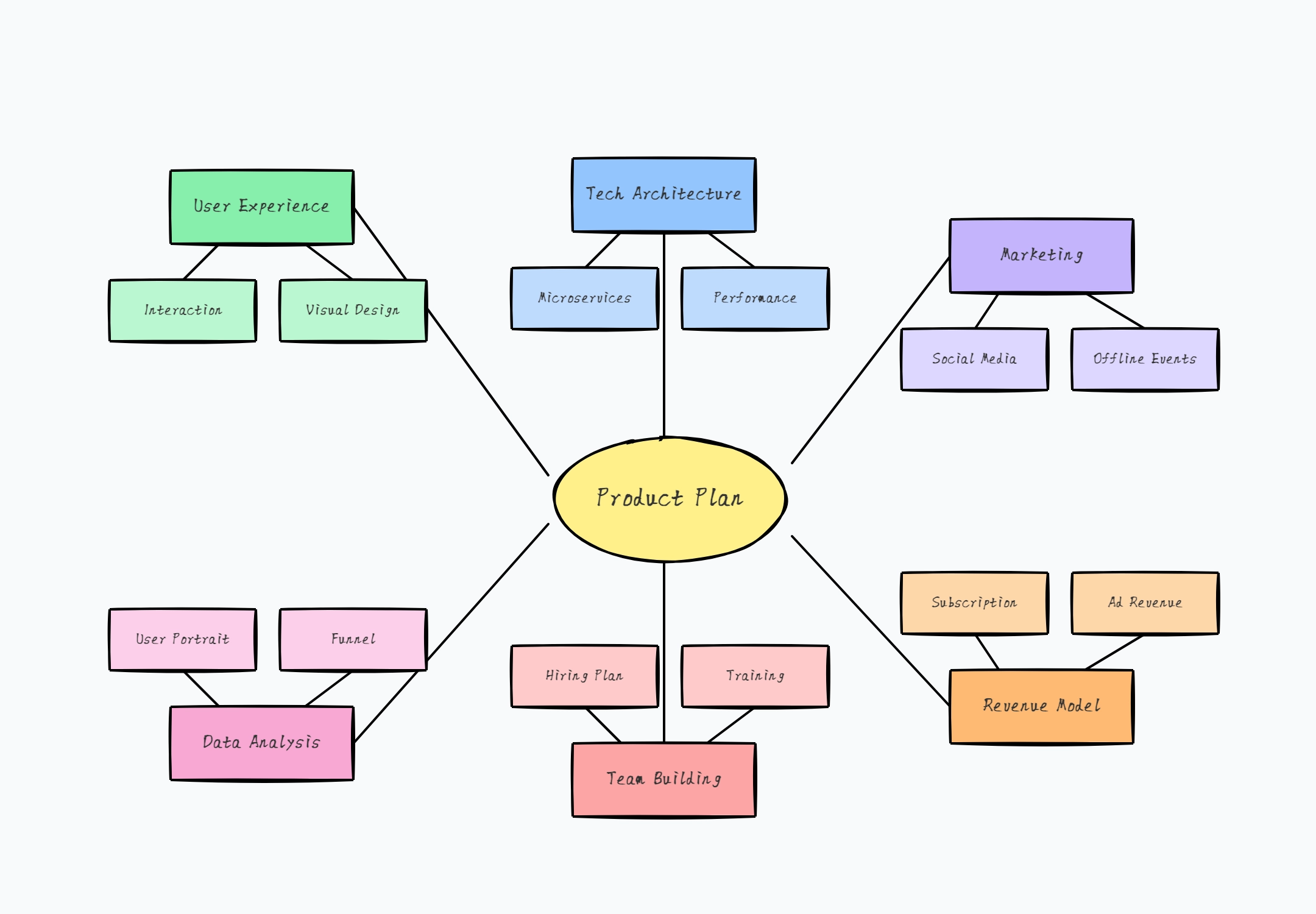
CodePic takes a different approach from most tools on this list. It's built around a hand-drawn aesthetic — diagrams look like whiteboard sketches, which keeps early-stage work feeling exploratory rather than final. The shape library covers the common technical diagram types: flowcharts, mind maps, org charts, sequence diagrams, ERDs, and more.
What makes it genuinely different is AI integration. CodePic supports the MCP protocol, which means you can connect it to Claude or Cursor and generate diagrams from plain-language descriptions. For teams that already work with AI coding tools, this changes the economics of diagramming: instead of drawing, you describe.
It's completely free with no board limits, and no account is required to start.
Best for: Technical teams and developers who want free, unlimited whiteboarding with AI-assisted diagram generation.
Quick Comparison
| Tool | Free Plan Limit | Real-time Collab | Diagram Depth | AI Features |
|---|---|---|---|---|
| Excalidraw | Unlimited | Via shared link | Basic | No |
| draw.io | Unlimited | Via file sharing | Deep | No |
| Miro | 3 boards | ✓ | Medium | Limited |
| FigJam | 3 files | ✓ | Medium | Limited |
| Notion Canvas | Unlimited | ✓ | Minimal | Via Notion AI |
| CodePic | Unlimited | Read-only link | Medium-deep | MCP / Claude / Cursor |
How to Choose
If you need unlimited free boards and don't need real-time editing: draw.io or Excalidraw. Both are fully featured and have no caps.
If real-time collaboration is essential and you can live with three boards: Miro or FigJam. Both have polished collaboration on free plans.
If your team uses AI tools and wants diagramming to fit into that workflow: CodePic — the only free tool with native MCP integration.
If you're already in Figma: FigJam is the natural choice.
If you're already in Notion: Notion's canvas is worth exploring before adding another tool.
The honest advice: don't pick based on the feature list. Pick two tools that seem to fit your context and run a real session with each. The one that gets out of your way is the right one.
Related Reading
- The Best Free Timeline Makers in 2026 — When you need to visualize project history, roadmaps, or event sequences.
- The Best Free Org Chart Makers in 2026 — For documenting team structure and organizational hierarchy.
- Best Diagramming Tools in 2026 — A broader comparison of diagramming tools for flowcharts, architecture diagrams, and more.