During an incident, the worst time to figure out what to check is while production is down. A troubleshooting flowchart moves that thinking before the incident — it captures the decision path once, so anyone on call can follow it under pressure instead of improvising from memory.
This guide maps a real incident-response flow. Because nearly every node is a branching question, a troubleshooting flowchart is essentially a decision tree — see that guide for the broader pattern.
Why Incidents Need a Flowchart
Two engineers handling the same outage will check different things in a different order. That inconsistency costs time and causes missed steps. A troubleshooting flowchart standardizes the path: check this first, and based on the answer, do that next. It also doubles as training — a new on-call engineer can follow the diagram instead of paging a senior one.
Step by Step
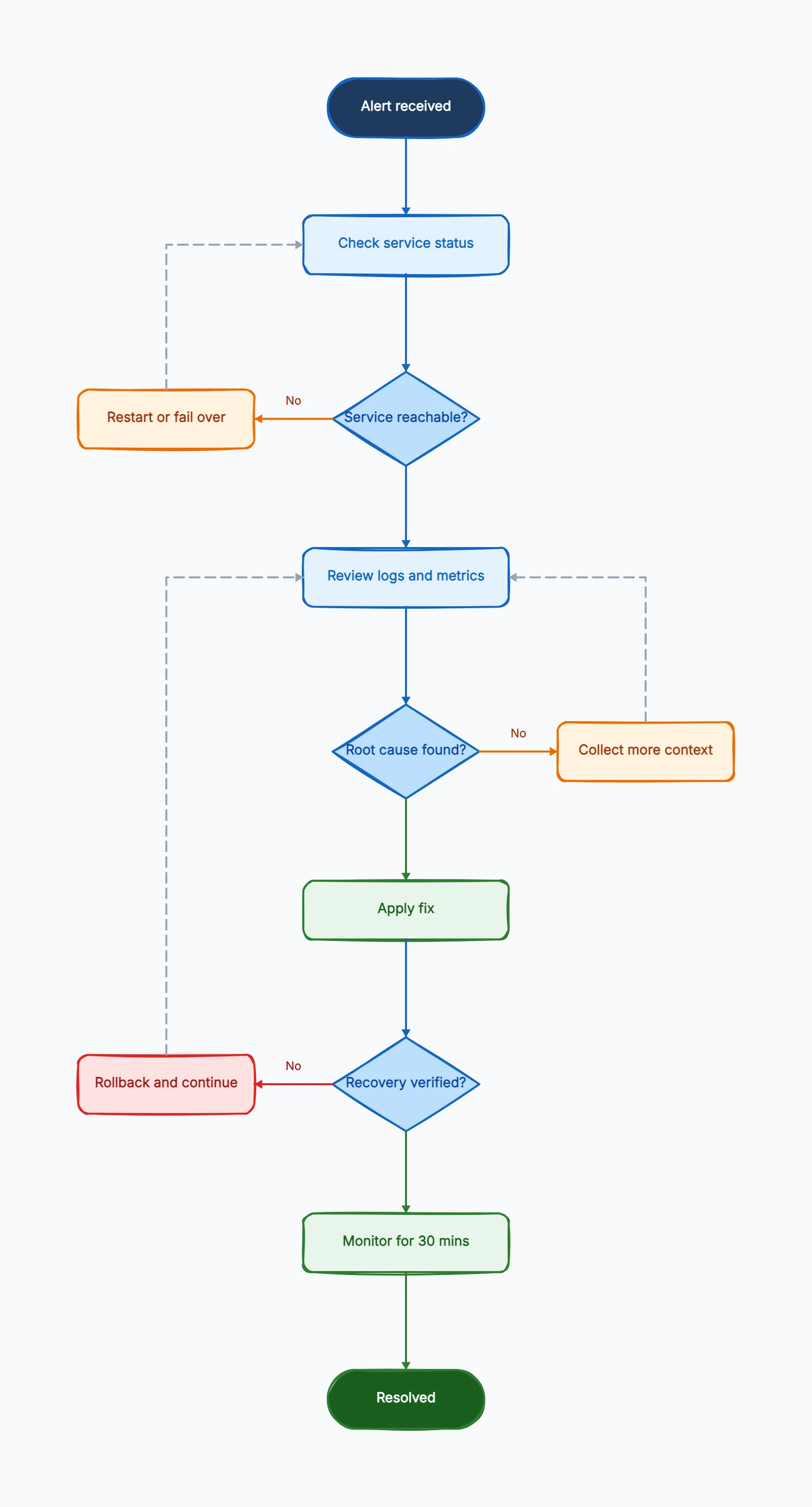
Here is the flow from our troubleshooting flowchart template:
1. Alert received. The entry point — an alert, a page, a report that something is wrong.
2. Check service status. The first diagnostic: is the service even reachable?
3. Service reachable? (decision). If No, go to Restart or fail over — get the service back before deep debugging. If Yes, move to investigation.
4. Review logs and metrics. Gather evidence: error logs, latency, recent deploys.
5. Root cause found? (decision). If No, route to Collect more context and loop back to log review with a wider net. If Yes, continue. This loop reflects reality — you rarely find the cause on the first pass.
6. Apply fix. Make the change that should resolve the issue.
7. Recovery verified? (decision). The critical gate. If No, route to Rollback and continue — undo the change and keep investigating rather than leaving a broken fix in place. If Yes, continue.
8. Monitor for 30 mins → Resolved. Don't declare victory immediately. A monitoring window confirms the fix held before reaching the Resolved end state.
The three decision points (reachable, root cause, recovery verified) with their loop-backs are what make this a usable incident playbook rather than a linear checklist. Open the flowchart maker with this template to see the rollback and re-investigation paths.
Common Mistakes
No rollback path. If "apply fix" leads straight to "resolved" with no verification gate, the diagram assumes every fix works. The "Recovery verified? → No → Rollback" branch is the most important part of an incident flow.
Declaring resolution too early. Without a monitoring window, a fix that only appears to work gets marked resolved — and the incident reopens. Build the wait into the flow.
Skipping the reachability check. Deep-debugging a service that's simply down wastes the first critical minutes. Check reachability first, restore, then investigate.
Frequently Asked Questions
What is a troubleshooting flowchart?
A troubleshooting flowchart is a decision tree that turns incident response or debugging into a repeatable path — status checks, log review, rollback, and recovery verification.
Why use a flowchart for incident response?
Under pressure people skip steps and rely on memory. A flowchart makes the decision path explicit so anyone on call can follow it consistently.
Ready to build your incident playbook? Start from the troubleshooting flowchart template — it loads with status checks, rollback, and verification gates already in place, no signup required.
Related Reading
- Types of Flowcharts — decision trees and more
- Troubleshooting flowchart examples — layouts to copy
- How to Make a Flowchart — the general tutorial
- Flowchart Symbols Guide — every shape explained