Flowchart symbols are the standardized shapes used to represent each kind of step in a flowchart. Every common symbol — oval, rectangle, diamond, parallelogram, arrow — has a specific meaning that tells the reader what's happening at that point, so anyone who knows flowchart shapes and their meanings can read a diagram without explanation.
This guide is a complete flowchart symbols guide: every common shape defined with examples, including the four basic symbols most flowcharts actually need (terminator, process, decision, flow line), plus less common symbols like the parallelogram (data), cylinder (database), and off-page connector. If you also want an overview of flowcharts including types and use cases, see What Is a Flowchart?.
The Core Symbols
These six symbols appear in virtually every flowchart. If you only learn these, you can read and draw most diagrams you'll encounter.
Terminator Symbol (Oval): Start and End

Shape: Rounded rectangle or oval
Meaning: Start or end of the process
Usage: Every flowchart should have exactly one Start and one End (or a defined number if there are multiple exit paths). Label these clearly — "Start", "End", or something more specific like "Process Complete" or "User Exits."
Process Symbol (Rectangle): A Single Action or Step

Shape: Plain rectangle
Meaning: An action or step being performed
Usage: This is the workhorse of flowcharts. Use it for any step where something is being done: "Send confirmation email", "Calculate total price", "Update database record." Keep the label short and action-oriented — start with a verb.
Decision Symbol (Diamond): A Yes / No Branch

Shape: Diamond (rotated square)
Meaning: A decision point with two or more possible outcomes
Usage: A decision diamond always has a question or condition inside it, and at least two exits — typically labeled "Yes / No" or "True / False." The flow branches based on the answer. If you have more than two outcomes, you can add additional exit arrows, but diagrams with many branches become hard to read quickly.
Parallelogram Symbol: Input or Output (Data) in a Flowchart

Shape: Parallelogram (slanted rectangle)
Meaning: Input or output of data
Usage: Use this when the process involves receiving input from a user or external source, or when it produces output. In software flowcharts, this often represents reading from or writing to a file, database, or user interface.
Flow Line (Arrow): Direction Between Steps
Shape: Line with an arrowhead
Meaning: Direction of flow between steps
Usage: Arrows connect all other shapes and show which step comes next. They should always point in one direction — ambiguous arrows (no arrowhead, or double-headed) create confusion. Label arrows when the direction isn't obvious, or when a decision diamond needs more context than "Yes/No."
Rounded Rectangle / Process (Alternative)
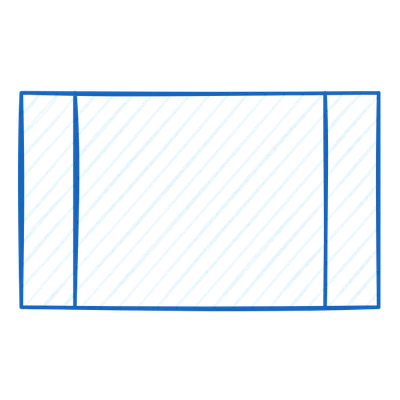
Some tools use a rounded rectangle (distinct from the terminator) to represent a predefined process or subroutine — a step that is defined in detail elsewhere and called by reference. If your team doesn't use subroutines, this shape is often interchangeable with the regular process rectangle.
Additional Symbols
These shapes are used in more complex or specialized flowcharts.
Document

Shape: Rectangle with a wavy bottom edge
Meaning: A document or report produced or used in the process
Usage: When a step involves generating or consuming a physical or digital document — a contract, an invoice, a printed report. Often used in business process diagrams where paper trails matter.
Multiple Documents
Shape: Stacked document shapes
Meaning: Multiple documents
Usage: Used when a step involves several documents at once — processing a batch of invoices, for example.
Database / Cylinder

Shape: Cylinder
Meaning: Stored data — typically a database
Usage: In system architecture and data flow diagrams, the cylinder represents a persistent data store. In flowcharts, use it when the process reads from or writes to a database.
Manual Input

Shape: Rectangle with a slanted top edge
Meaning: Data entered manually by a person
Usage: When a user physically types or enters data — a form field, a keyboard entry, a manual override. Helps distinguish automated steps from human interactions.
Display
Shape: Shape that looks like a monitor or screen
Meaning: Information shown to the user
Usage: When a step involves displaying something on a screen — a dashboard, a confirmation message, a report view.
Manual Operation
Shape: Trapezoid (wide top, narrow bottom)
Meaning: A step performed manually, not automated
Usage: In diagrams that mix automated and manual steps, this shape flags the manual ones. Useful for process improvement work where the goal is to identify and reduce manual steps.
Connector Symbol: Linking Across or Off-Page in Flowcharts

Shape: Small circle (on-page connector) or pentagon (off-page connector)
Meaning: The flow continues elsewhere
Usage: When a flowchart gets too large to fit on one page or canvas, use connectors to link sections. Label both connectors with the same letter or number so the reader knows where to pick up.
Preparation / Initialization

Shape: Hexagon
Meaning: A setup step before the main process begins
Usage: Used in technical diagrams to show initialization steps — setting variables, loading configuration, preparing a loop. Not commonly used in business process diagrams.
Delay

Shape: D-shape (rectangle with a rounded right side)
Meaning: A waiting period or delay in the process
Usage: When the process must pause and wait — for an approval, a delivery, a timer, or an external event.
The Only Symbols Most Teams Actually Need
If you're drawing a normal business or software flowchart today, you probably do not need the full symbol list above. In practice, most teams can do 90% of their work with just these five:
- Start / End for entry and exit points
- Process for action steps
- Decision for branches
- Arrow for flow direction
- Input / Output only when data entering or leaving the process matters
That means you can start drawing without overthinking notation. To try those symbols immediately, open the flowchart maker template and choose “Use this template.”
How to Read a Flowchart
When you encounter a flowchart drawn by someone else, here's a simple approach:
- Find the Start — the oval or terminator labeled "Start." If there isn't one, look for the shape with no incoming arrows.
- Follow the arrows — always in the direction they point, never backward unless a loop is explicitly shown.
- At every decision diamond, understand the condition being tested and which path each outcome follows.
- At connectors, find the matching label on another part of the diagram to continue.
- Find the End — confirm you've reached a terminal state, not a dead end where an arrow simply stops.
Common Mistakes
Using the wrong shape for convenience. If a diamond means "decision," don't use it for a regular step just because it looks good in that position. Readers will expect a branch.
Missing labels on decision arrows. Every exit from a diamond needs a label. "Yes/No" is fine; unlabeled arrows force the reader to guess.
Too many crossing arrows. When arrows cross frequently, the chart becomes hard to follow. Reorganize the layout so the main flow runs in one direction (usually top-to-bottom or left-to-right).
No terminator. A flowchart without a clear Start and End is ambiguous. Even if the process is cyclical, show where it begins and define the exit condition.
Overloading a single shape. If a process rectangle needs five lines of explanation, it's probably doing too much. Break it into multiple steps.
FAQ
What are the 4 basic flowchart symbols?
If you want the minimal starter set, use Start/End, Process, Decision, and Arrow. Add Input/Output only when your diagram needs to show data entering or leaving the process. That small set is enough for most everyday diagrams.
What are the 8 basic symbols of flowchart?
The eight most commonly taught flowchart symbols are: Terminator (oval — start/end), Process (rectangle — an action), Decision (diamond — yes/no branch), Parallelogram (input/output data), Document (a single document), Cylinder (database/storage), Manual Input (data entered by a user), and Connector (small circle — linking across pages or sections). Most everyday flowcharts only use the first four.
What does a parallelogram mean in a flowchart?
A parallelogram in a flowchart means input or output — data entering or leaving the process. Use it whenever a step reads data from a user or another system (input) or returns data to one (output). It's distinct from the rectangle, which represents an action performed inside the process.
What is the connector symbol in a flowchart?
The connector symbol is a small circle (or labeled circle) used to link two parts of a flowchart that can't be connected by a direct line — usually because the flowchart spans multiple pages or has crossing sections. Matching letters or numbers inside two connector circles tell the reader "this flow continues there."
What is the decision symbol in a flowchart?
The decision symbol is a diamond shape that represents a yes/no (or true/false) branch in the process flow. Two or more flow lines exit the diamond, each labeled with the condition that leads down that path. Decision symbols are how flowcharts express conditional logic.
What is the terminal symbol in a flowchart?
The terminal symbol (also called terminator) is an oval shape that marks the start and end of a flowchart. Every flowchart should have one terminator labeled "Start" at the top and one labeled "End" at the bottom. They're the only shapes whose label is fixed.
Do I need to use every flowchart symbol correctly?
You do not need every symbol, but the ones you do use should stay consistent. A rectangle should keep meaning "do this step" and a diamond should keep meaning "make a decision here." Consistency matters more than completeness.
What's the most common mistake with flowchart symbols?
Using a diamond for something that is not actually a decision, and forgetting to label the exits. A decision symbol without clear Yes/No (or equivalent) paths is one of the fastest ways to make a flowchart unreadable.
Where can I practice using these symbols?
The easiest way is to start from a flowchart maker template and redraw a simple process you already know. If you want a few layouts to copy first, browse these flowchart examples.
Quick Reference
| Symbol | Shape | Meaning |
|---|---|---|
| Terminator | Oval | Start or End |
| Process | Rectangle | Action or step |
| Decision | Diamond | Branch point |
| Data | Parallelogram | Input or Output |
| Document | Wavy-bottom rectangle | Document produced or used |
| Database | Cylinder | Stored data |
| Manual Input | Slanted-top rectangle | Human data entry |
| Connector | Circle | Continues elsewhere on same page |
| Off-page reference | Pentagon | Continues on another page |
| Delay | D-shape | Waiting period |
| Manual Operation | Trapezoid | Human-performed step |
Ready to draw your first flowchart? The template below gives you a starting point with the most common symbols already in place.
Related Reading
- Flowchart Examples — real-world layouts you can copy
- How to Make a Flowchart — step-by-step tutorial
- Free Flowchart Makers — tool comparison
- Open the flowchart maker template — choose the template, then enter the editor


